
Learn how to start sharing your trainer screen in a live Train Lens session, choose what trainees can see and stop sharing when you are finished.
Screen sharing lets trainees see the content you choose to present from your computer during a live Train Lens session.
Before you begin, close unrelated applications, messages and documents that you do not want trainees to see. Open the software, browser tab or other material you plan to demonstrate.
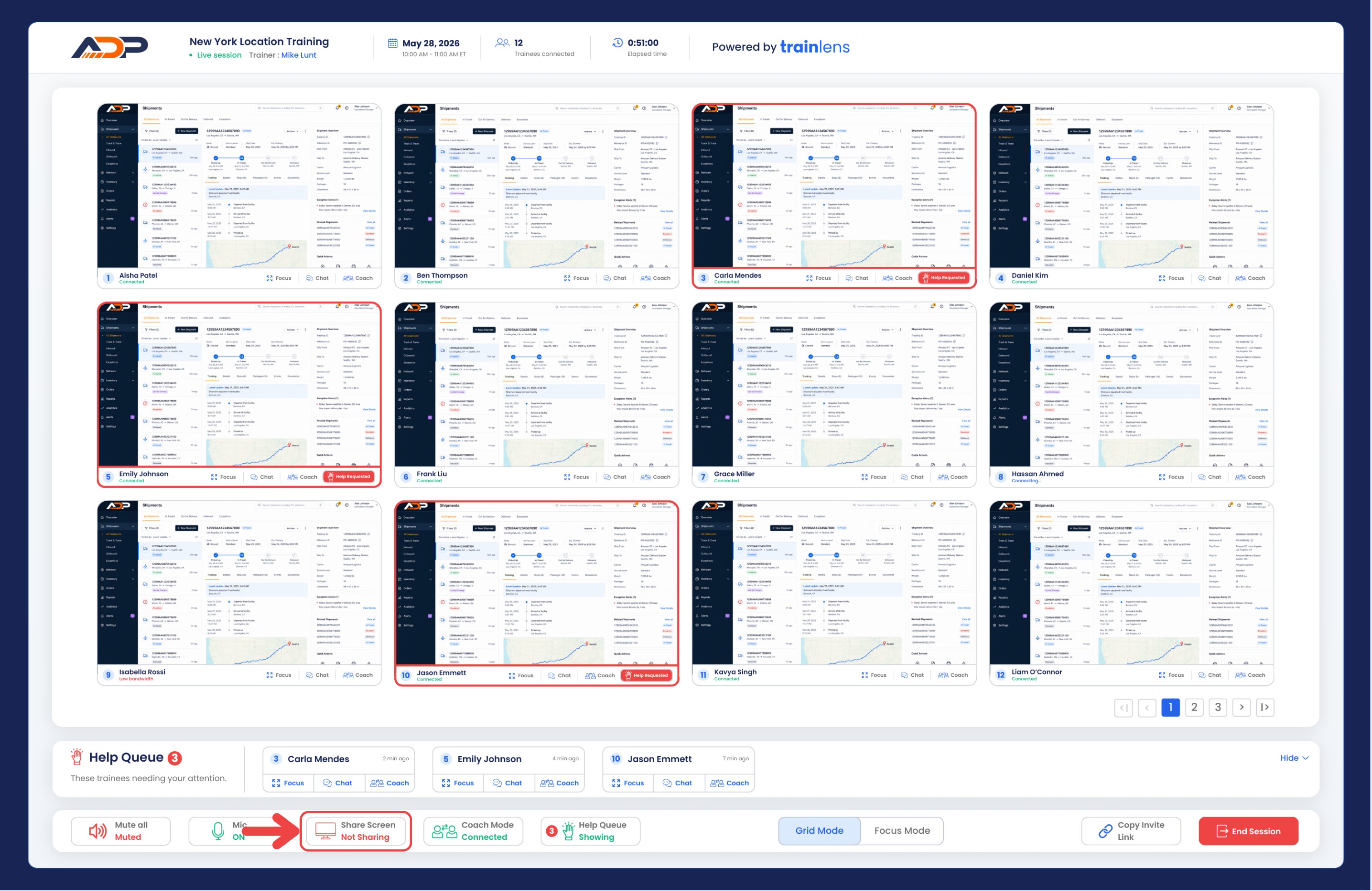
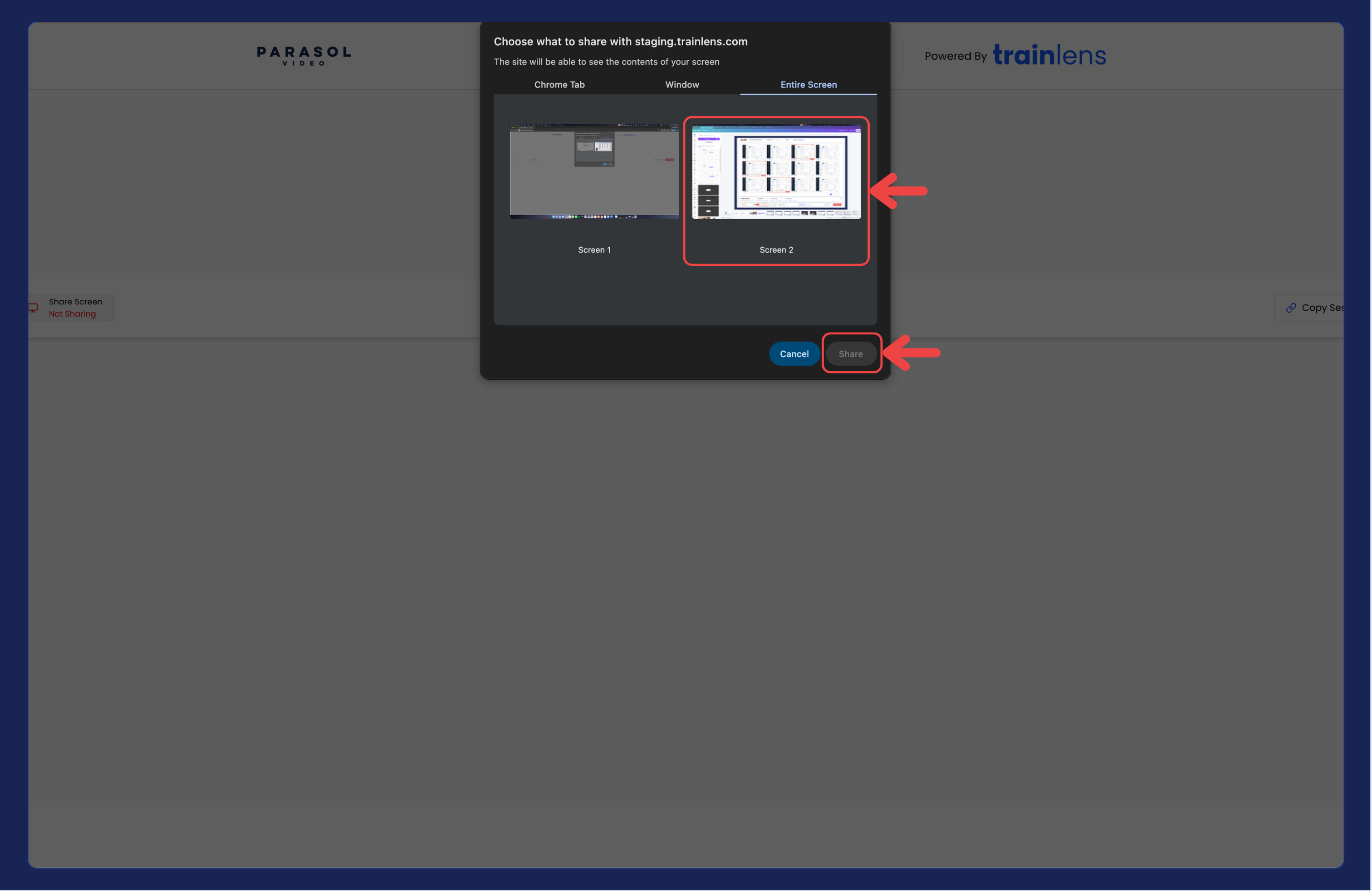
Your browser controls the chooser used to select what is shared. The available choices depend on the browser and operating system.
Return to Train Lens after confirming the browser selection.
Check the live session for the current visual indicator that your trainer screen is being shared. If possible, use a practice session or a trainee device to confirm that trainees can see the intended content.
If you shared an entire screen, trainees may see whatever appears on that screen while sharing remains active. If you shared a single application window or browser tab, only that selected content should be presented through the browser's sharing mechanism.
When moving between training materials, check what is currently being shared before opening confidential or unrelated information.
You may also see a browser-provided sharing indicator or stop-sharing control. Its appearance varies by browser.
Continue with the Trainer guides for viewing trainee screens and supporting trainees during the live session.
Contact us anytime at
contact@trainlens.com