01
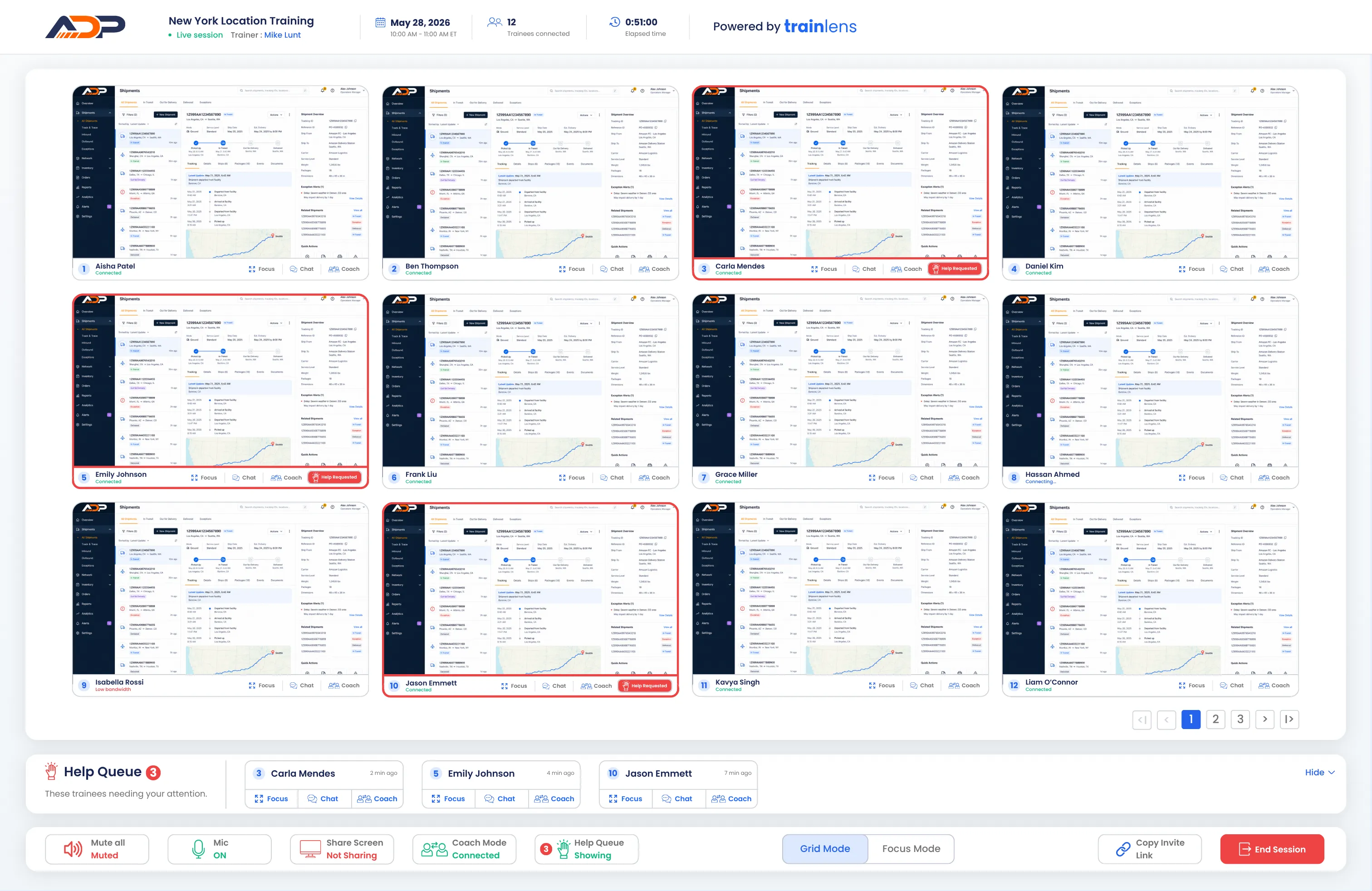
Grid mode
See the cohort’s shared screens together, with trainee names, connection status and help indicators. Follow how people are progressing through the exercise and spot where someone may need support.

Train Lens gives trainers a live view of each trainee’s shared screen during hands-on software training.
Follow progress across the cohort, respond to help requests, and provide private coaching while the rest of the group continues working.
Hands-on training moves at different speeds. Some trainees follow each step confidently, while others need more guidance. Train Lens lets you move between a cohort-wide view and an individual trainee’s shared screen without losing the context of the session. The trainer can also demonstrate a task by sharing their screen with the group, while viewing each trainee’s progress privately.
See the cohort’s shared screens together, with trainee names, connection status and help indicators. Follow how people are progressing through the exercise and spot where someone may need support.
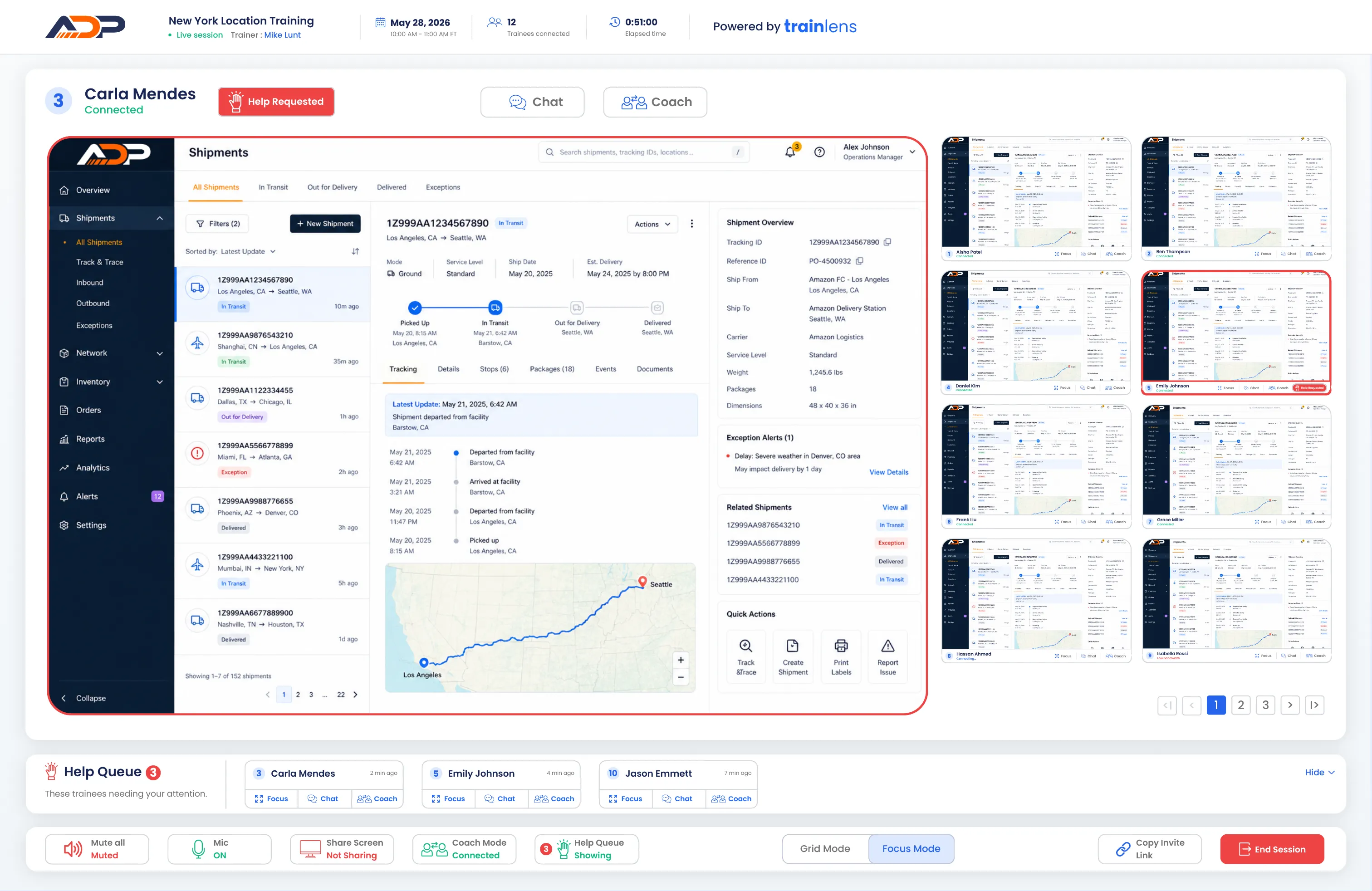
Bring one trainee’s shared screen into a larger view while keeping the rest of the cohort visible. Inspect their work more closely before choosing whether to move on or begin private coaching.
See who has asked for assistance and respond from the help queue. Open the trainee’s screen, understand where they are in the exercise, and choose the appropriate support.

When someone gets stuck during an exercise, they shouldn’t have to speak over the trainer or wait to be noticed. A trainee can send a help request from their workspace, giving the trainer a clear signal that support is needed.


Seeing where someone is stuck is only the first step. Train Lens lets you get a focused view or begin 1:1 coaching, so the trainee can get guidance without turning their question into a discussion for the entire class.



Imagine a group learning to process an order in a new software system. Everyone follows the same exercise, but they won’t all reach each step together. In Grid Mode, the trainer can follow the shared screens and notice when someone’s work takes a different direction. The trainer can fix this before the trainee falls too far behind.
A trainee can also request help after getting stuck on an unfamiliar field. The trainer can focus on their screen in Focus Mode, check the context, and offer a private explanation. The rest of the cohort continue the exercise while that trainee gets the guidance they need.
During a Train Lens session, a trainee’s shared screen is visible to their trainer, not to other trainees. Sharing status stays visible, so people can understand when their screen can be seen and stop sharing when needed.
Learn how screen visibility, help requests and private coaching work during hands-on training.
Explore how Train Lens fits your live training workflow.